Match your website
Choose colors, a name and greeting. Upload a photo for the round launcher and check the settings preview.
Let visitors ask a question directly on the page. Their messages arrive in GoMsg business conversations, where the site owner and connected operators can reply. Visitors do not need a separate messenger account.
The web client will open. Sign in or create an account to start chatting.
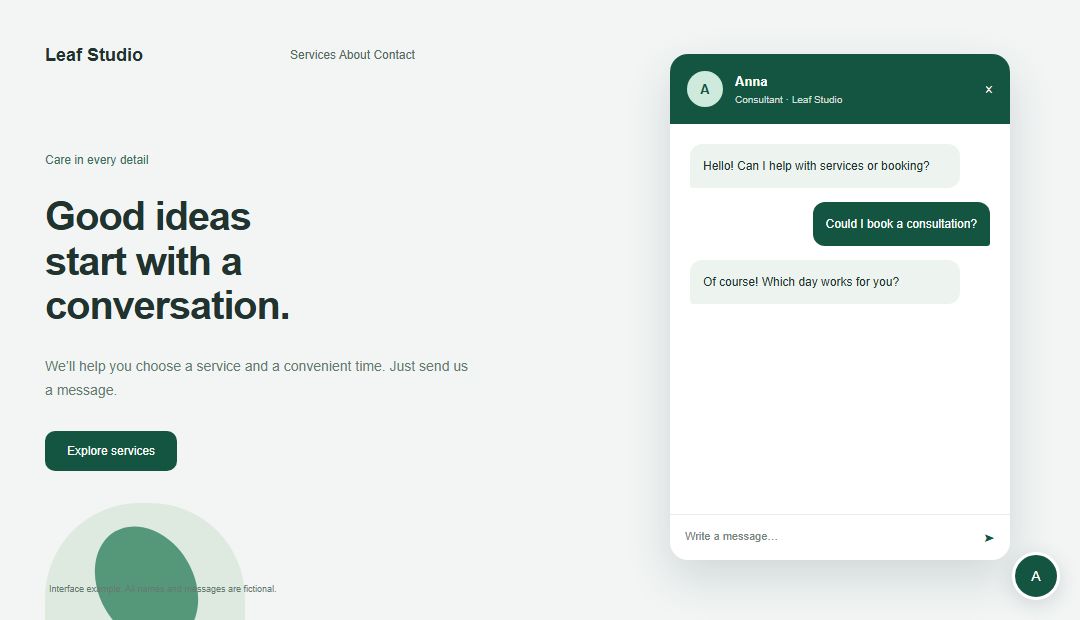
A visitor looks at a service but needs help choosing. The chat button lets them ask on that page. You receive the question in GoMsg and continue the conversation. Link a company to group messages from its sites alongside other customer chats.
Choose colors, a name and greeting. Upload a photo for the round launcher and check the settings preview.
Connect operators to a specific widget. The site owner can reply without additional operators. Check staff access before publishing.
Creating a company is optional. Link one to unite your brand and conversations from several sites in the business section.
Use the greeting to explain when you usually reply, for example weekdays from 9 to 6. Visitors can decide whether waiting suits them.
Add your website in the widgets section, choose its appearance and optionally select a company. Save and open its details.
Copy the embed snippet into your website HTML or platform’s custom code settings. You need permission to edit the site.
Open the published page on phone and desktop. Send a visitor message, check GoMsg receives it and reply to the widget.
Installation depends on your platform and editing permissions. Load the snippet where you need chat; appearance previews do not replace testing the published site.
A company link separates customer conversations from personal chats. The business tab groups messages by company and source: GoMsg or a website widget.
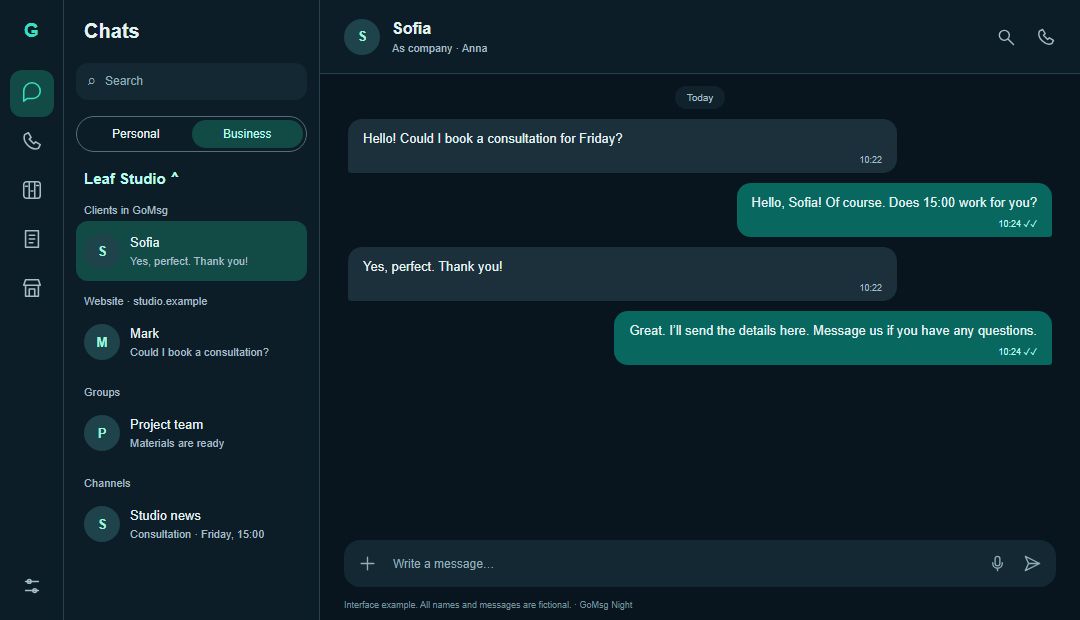
No. Start with a standalone widget. A company can group several sites and customer conversations under one brand; configure the link separately.
No. They send and receive messages in your website widget without a GoMsg account. Access depends on their saved session; clearing browser data may lose the previous conversation.
The widget embeds through JavaScript. Your platform must permit custom code, which may depend on its plan. Test loading and two-way messaging after publication.
Your selected GoMsg server processes them. Its privacy policy or administrator’s rules apply. Self-hosting requires infrastructure and can still use external notification services.
Create a widget in GoMsg, add its code to your site and test the first visitor message.