Clear responsibility
Choose the other person in a direct conversation, or one or more participants in a group. Each assignee has their own acceptance and progress state, so a shared assignment still has identifiable owners.
“Have this ready by Friday” is easy to lose among messages. In GoMsg, assign a task within the conversation, choose the people and deadline, then track it in a list or on a board. The task stays connected to the chat, so asking for clarification does not mean searching through another tool.
The web client will open. Sign in or create an account to start chatting.
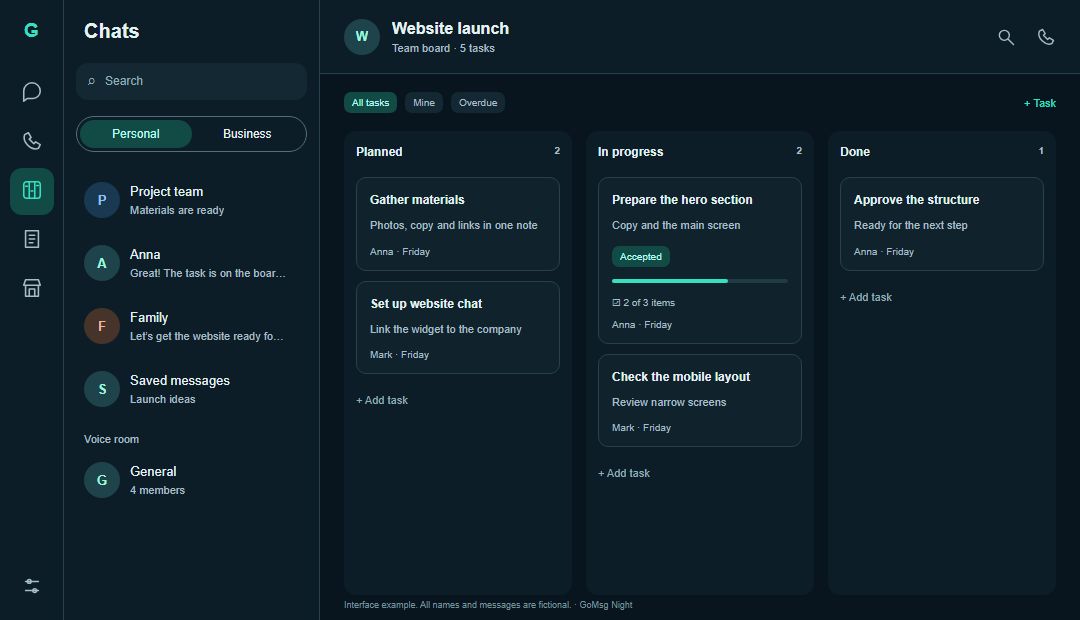
Your team agrees to update its website. Create “Prepare the first screen” in the chat, choose the designer, set a deadline and request acceptance. Once the assignee accepts, their response appears on the task. You can follow subsequent stages on a project board.
Choose the other person in a direct conversation, or one or more participants in a group. Each assignee has their own acceptance and progress state, so a shared assignment still has identifiable owners.
Request confirmation when agreement matters. An assignee can accept the task or decline with an explanation. This helps distinguish an assignment you sent from work someone has agreed to take on.
Create, rename and reorder columns to match your process. Drag columns on a wide screen or use management actions on a narrow one. Start with a few useful stages rather than a complicated workflow.
Return to the original chat, add comments and link supporting materials. A plan, report or note can explain the requested work and its outcome without copying the entire conversation into the task.
Open the plus menu in a chat and choose a task. Use a short title that describes an action and its expected result.
Select the assignee, add a deadline and request acceptance if necessary. Open additional settings when the work needs them.
Open the conversation’s task list or its linked board. Update the stage and return to the chat when you need to discuss something.
Use a list to find a particular task and a board to see the stages of work. These are ways of viewing tasks, not separate copies that need to be kept in sync manually.
An assignment has its owner and deadline. A personal plan helps the assignee decide which day to work on it. Scheduling the task for yourself does not move the team’s deadline.
Yes. A chat has its own task list. If the work needs a project board and you have access, you can select it when creating the task.
Yes. In a group conversation, choose multiple available participants. Each person’s acceptance and progress appear separately.
Available assignees depend on chat membership, permissions and the server’s module settings. GoMsg checks access before allowing an assignment.
GoMsg supports daily assignments and staged work alongside conversations. Assess specialist development workflows, integrations and advanced reporting separately.
Sign in or create an account and start with one clear task. Your selected server must allow access to tasks and planning.